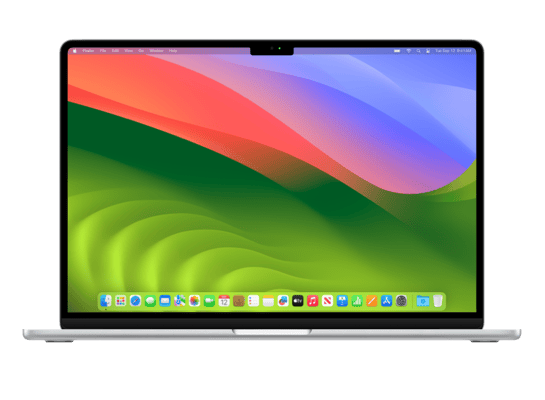

Mac16,2
About This Firmware
macOS 26.2 RC
(build 25C56)
is a beta IPSW for the Mac16,2,
released on December 3, 2025.
The download is 18.74 GB. This build is currently signed by Apple, so blobs can still be saved.
UniversalMac_26.2_25C56_Restore.ipsw
Release Notes
This update introduces Edge Light to illuminate your face during low-light video calls, and includes other features, bug fixes, and security updates for your Mac.
Edge Light- Edge Light video effect uses the Mac display to illuminate your face like a virtual ring light when you're on a video call in low light
- Customizable light width and temperature give you control over how you're lit
- Mouse awareness ensures that the light recedes when you need to access content underneath
- Option to have the light turn on automatically in low light situations on Mac computers introduced in 2024 and later
- Automatically generated chapters make it easier to navigate episodes
- Links to mentioned podcasts let you see and follow other podcasts mentioned in the episode you’re listening to directly from the player and transcript
- Filters in the Games library let you find games by category, size, and more
- In-game challenge score banners provide real-time updates when someone new has taken the lead
- Connected controller support
- AirDrop codes offer an additional layer of verification when using AirDrop with unknown contacts by providing a code on the receiver's device that the sender must enter to complete the transfer
- Apple News Section links in the sidebar of the News app offer easy navigation to popular topics like Sports, Politics, Business, and Food
- Tables in Freeform can hold text, images, documents, and drawings, with cells that intelligently resize to fit, bringing structure to the infinite canvas
- Favorite Songs playlist appears in Top Picks in Apple Music
- Fixes an issue where pre-release albums in the library were not immediately playable at their release time
Some features may not be available in all regions or on all Apple devices. To learn more, please visit: apple.com/macos/feature-availability
Software updates, like this one, add new features and improvements that may affect performance and/or battery life. To learn more, please visit: support.apple.com/125039.
How to Install
iTunes / Finder
macOS & Windows- Download the .ipsw file to your computer.
- Connect your Mac16,2 to your computer via USB.
- Open iTunes (Windows / macOS Mojave and earlier) or Finder (macOS Catalina+) and select your device.
- Hold Option ⌘ (Mac) or Shift (Windows) and click Check for Update or Restore iPhone…
- Select the downloaded .ipsw file and follow the on‑screen instructions.
- Wait for the process to complete — do not disconnect the device.
DFU Mode
Recovery tipIf your device is stuck in a boot loop or not recognised by iTunes/Finder, enter DFU (Device Firmware Update) mode first, then select the .ipsw file as normal.
iPhone 8 / X and later
- Quickly press & release Volume Up
- Quickly press & release Volume Down
- Hold Side button until screen goes black
- Hold Side + Volume Down for 5 s
- Release Side, keep holding Volume Down for 5 more seconds
- Black screen = DFU active
iPhone 7 / 7 Plus
- Hold Sleep/Wake + Volume Down for 8 s
- Release Sleep/Wake, keep holding Volume Down for 5 s
- Black screen = DFU active
iPhone 6s and earlier
- Hold Sleep/Wake + Home for 8 s
- Release Sleep/Wake, keep holding Home for 5 s
- Black screen = DFU active
SHSH Blobs
✓ Signed — save nowSHSH blobs are personalised cryptographic tickets Apple issues for a specific device and firmware. Saving blobs for a currently signed build lets you restore to it later using tools like futurerestore. macOS 26.2 RC is currently signed — save your blobs now.
A free open-source GUI app for macOS, Windows and Linux. Connect your device and save blobs with one click.
Download blobsaverCommand-line tool by tihmstar. Requires your device ECID and board config.
tsschecker -d Mac16,2 --buildid 25C56 -e [ECID] --save
Other Devices with 25C56