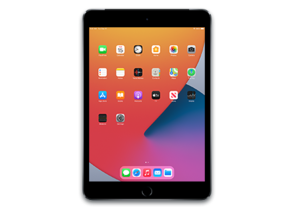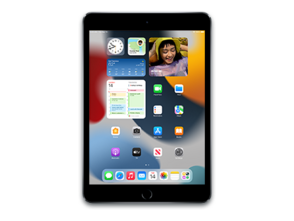

iPad15,4
About This Firmware
iPadOS 26.6 Beta 3
(build 23G5052d)
is a beta IPSW for the iPad15,4,
released on 2026-06-29.
The download is 10.61 GB. This build is no longer signed by Apple. Blobs can no longer be saved for this build.
iPad15,3,iPad15,4,iPad15,5,iPad15,6_26.6_23G5052d_Restore.ipsw
Release Notes
Overview
The iOS & iPadOS 26.6 SDK provides support to develop apps for iPhone and iPad running iOS & iPadOS 26.6 beta 3. The SDK comes bundled with Xcode 26.6, available from the Mac App Store. For information on the compatibility requirements for Xcode 26.6, see Xcode 26.6 Release Notes.
HealthKit
Resolved Issues
- Fixed: Authorization Screen not displaying when requesting
HKQuantityTypeIdentifierBloodPressureDiastolicorHKQuantityTypeIdentifierBloodPressureSystolic. (177652061) - Fixed: Temporally-weighted average statistics queries for discrete quantity types such as Resting Heart Rate may return erroneously high values when samples overlap in time. (178157672)
Object Capture
Resolved Issues
- Fixed: Capture and reconstruction might fail. (175324303)
Stickers
Resolved Issues
- Fixed: You might be unable to create new stickers or see existing stickers when sticker data becomes corrupted. This prevents you from using stickers, and the issue can persist to other devices when synced via iCloud. (163377768)
StoreKit
Resolved Issues
- Fixed:
SKTestSessionsdoes not properly connect to the test environment when using Simulator, causing test actions to fail. (174738526) (FB22500243)
How to Install
iTunes / Finder
macOS & Windows- Download the .ipsw file to your computer.
- Connect your iPad15,4 to your computer via USB.
- Open iTunes (Windows / macOS Mojave and earlier) or Finder (macOS Catalina+) and select your device.
- Hold Option ⌘ (Mac) or Shift (Windows) and click Check for Update or Restore iPhone…
- Select the downloaded .ipsw file and follow the on‑screen instructions.
- Wait for the process to complete — do not disconnect the device.
DFU Mode
Recovery tipIf your device is stuck in a boot loop or not recognised by iTunes/Finder, enter DFU (Device Firmware Update) mode first, then select the .ipsw file as normal.
iPhone 8 / X and later
- Quickly press & release Volume Up
- Quickly press & release Volume Down
- Hold Side button until screen goes black
- Hold Side + Volume Down for 5 s
- Release Side, keep holding Volume Down for 5 more seconds
- Black screen = DFU active
iPhone 7 / 7 Plus
- Hold Sleep/Wake + Volume Down for 8 s
- Release Sleep/Wake, keep holding Volume Down for 5 s
- Black screen = DFU active
iPhone 6s and earlier
- Hold Sleep/Wake + Home for 8 s
- Release Sleep/Wake, keep holding Home for 5 s
- Black screen = DFU active
SHSH Blobs
Unsigned — too late to saveSHSH blobs are personalised cryptographic tickets Apple issues for a specific device and firmware. Saving blobs for a currently signed build lets you restore to it later using tools like futurerestore. iPadOS 26.6 Beta 3 is no longer signed.
A free open-source GUI app for macOS, Windows and Linux. Connect your device and save blobs with one click.
Download blobsaverCommand-line tool by tihmstar. Requires your device ECID and board config.
tsschecker -d iPad15,4 --buildid 23G5052d -e [ECID] --save
Other Devices with 23G5052d