
About This Firmware
Firmware 10.0
(build 23P350) is an official Apple IPSW
for the iBridge2,4,
released on 2025-09-15.
The file is served directly from Apple's CDN.
This firmware is currently signed by Apple, so it can be used to restore or update your device via iTunes or Finder.
Verify the download using the checksums below.
Filename
iBridge2,1,iBridge2,10,iBridge2,12,iBridge2,14,iBridge2,15,iBridge2,16,iBridge2,19,iBridge2,20,iBridge2,21,iBridge2,22,iBridge2,3,iBridge2,4,iBridge2,5,iBridge2,6,iBridge2,7,iBridge2,8_10.0_23P350_Restore.ipsw
Checksums
SHA-256
1758973a31342bc62bfbac44e94a1222868ca9d4f203178e2bb2fa22d162d86e
SHA-1
576ba16aded3f15fe51f43fbac0b0b0ad716cd28
MD5
cc4def870aa005b9dbaefd916000a4de
Direct URL
https://updates.cdn-apple.com/2025FallFCS/fullrestores/052-69211/8F332DE9-5259-4723-B440-18B140177D0D/iBridge2,1,iBridge2,10,iBridge2,12,iBridge2,14,iBridge2,15,iBridge2,16,iBridge2,19,iBridge2,20,iBridge2,21,iBridge2,22,iBridge2,3,iBridge2,4,iBridge2,5,iBridge2,6,iBridge2,7,iBridge2,8_10.0_23P350_Restore.ipsw
Other Devices
iPhone 5c (Global)
iPhone5,4
iPhone 14 Pro Max
iPhone15,3
iPhone 13 Pro Max
iPhone14,3
iPhone 6+
iPhone7,1
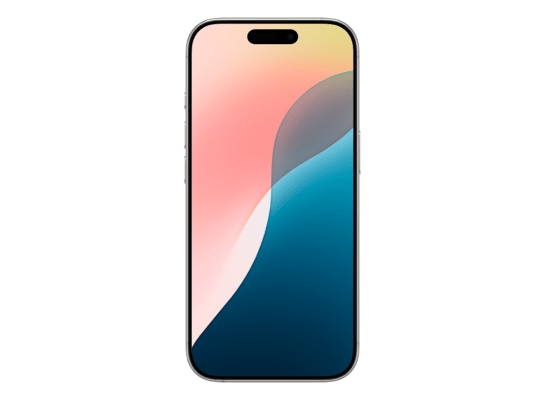
iPhone 16 Pro
iPhone17,1
iPhone 7 (GSM)
iPhone9,3
How to Restore with This IPSW
iTunes / Finder
macOS & Windows- Download the .ipsw file to your computer.
- Connect your iBridge2,4 via USB.
- Open iTunes (Windows / macOS Mojave and earlier) or Finder (macOS Catalina+) and select your device.
- Update (keep data): hold Option (Mac) or Shift (Windows) and click Update, then pick the .ipsw file.
- Restore (erase & install): hold Option / Shift and click Restore iPhone…, then pick the .ipsw file.
- Wait for the process to finish - do not disconnect.
Restoring will erase all data on the device. Back up first.
3uTools
Windows- Download and install 3uTools from 3u.com.
- Connect your iBridge2,4 via USB and trust the computer on the device.
- Go to Flash & JB > Easy Flash.
- Click Import and select the downloaded .ipsw file.
- Choose Flash mode: Update keeps data, Restore wipes the device.
- Click Flash and wait for the progress bar to complete - do not disconnect.
Only flash firmware that matches your exact device model.
DFU Mode
Recovery tipIf your device is stuck in a boot loop or iTunes/Finder does not recognise it, enter DFU mode first, then select the .ipsw file as normal.
iPhone 8 / X and later
- Quickly press & release Volume Up
- Quickly press & release Volume Down
- Hold Side button until screen goes black
- Hold Side + Volume Down for 5 s
- Release Side, hold Volume Down 5 more s
- Black screen = DFU active
iPhone 7 / 7 Plus
- Hold Sleep/Wake + Volume Down for 8 s
- Release Sleep/Wake, keep holding Volume Down for 5 s
- Black screen = DFU active
iPhone 6s and earlier
- Hold Sleep/Wake + Home for 8 s
- Release Sleep/Wake, keep holding Home for 5 s
- Black screen = DFU active