
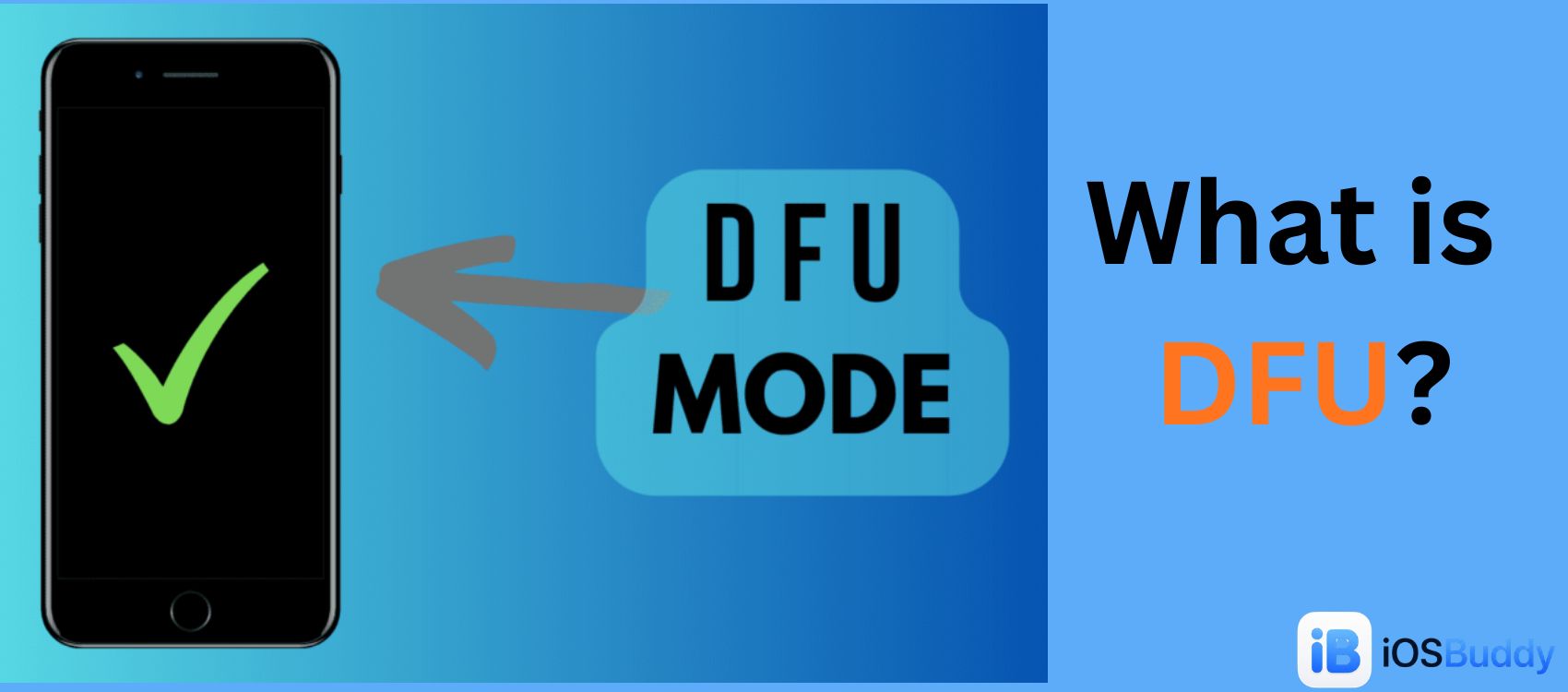
DFU (Protocol)
Like Dislike The DFU (Device Firmware Update) protocol is designed to provide a standard for upgrading the firmware of USB devices. It consists of two main parts: a large main firmware and a smaller bootloader
DFU (Device Firmware Update)
DFU (Device Firmware Update) is a specialized mode built into Apple iOS-based devices (iPhone, iPad, iPod Touch) and some other embedded systems that allows the device's firmware to be restored or updated from a state lower than the normal recovery mode. Unlike standard recovery mode, DFU mode bypasses the bootloader's normal verification processes, enabling advanced operations such as downgrading iOS versions, jailbreaking, or recovering a device that appears completely dead (black screen) but is still electrically powered.[1]
- Overview
- Technical Architecture
- Comparison with Recovery Mode
- How to Enter DFU Mode
- For Devices with a Home Button (iPhone 6s and earlier, iPad with Home button)
- For Face ID Devices (iPhone X, iPhone 14, iPad Pro without Home button)
- Common Use Cases
- 1. Reviving a Bricked Device
- 2. Downgrading iOS Versions
- 3. Jailbreaking
- 4. Removing a Forgotten Passcode
- Limitations and Modern Security
- Signature Checks (A12 and Later)
- Black Screen Confusion
- Checkm8 Bootrom Exploit
- Step-by-Step: Restoring a Device in DFU Mode
- Risks and Precautions
- See Also
- References
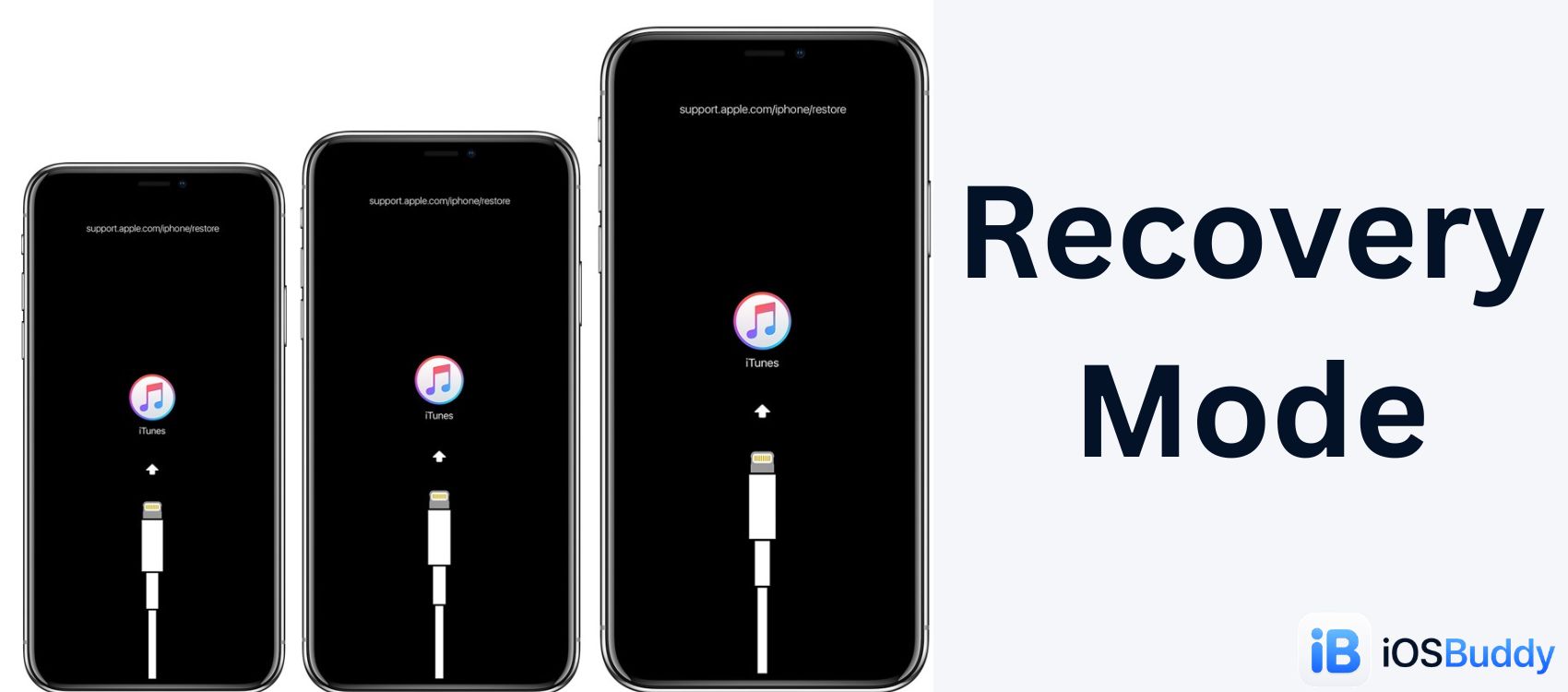
DFU mode is often confused with Recovery Mode. The key distinction is that Recovery Mode loads a minimal operating system to facilitate a restore, whereas DFU mode loads nothing at all. The device is essentially waiting for a firmware image to be sent directly to its flash memory via USB.
Overview
DFU mode was introduced by Apple as an engineering and factory tool. It allows technicians to reprogram the device at the hardware level when the standard software update process fails. In consumer contexts, DFU mode is the last resort for reviving a bricked device, performing a clean install that overwrites every byte of storage (including the system partition), or installing a custom firmware image not signed by Apple.
The term "Device Firmware Update" is somewhat of a misnomer. While the mode is used to update firmware, its primary function is to provide low-level access to the device's flash storage and core system components without any interference from iBoot, the second-stage bootloader.[2]
Technical Architecture
To understand DFU mode, it is necessary to understand the Apple device boot chain. When an Apple A-series or M-series chip powers on, it executes code in the following sequence:
- SecureROM (BootROM): Read-only memory hardcoded into the chip. Cannot be modified. It loads the next stage, iBoot, after verifying Apple's signature.
- iBoot (Low-Level Bootloader): Loads the kernel (XNU) and verifies the signature of the operating system.
- XNU Kernel: The core of iOS. Once loaded, standard Recovery Mode or the full OS runs.
- User Space: SpringBoard (iOS UI) or application layer.
DFU mode interrupts this chain at the iBoot stage. In DFU mode, iBoot loads but does not load the kernel. Instead, iBoot enters a USB DFU state defined by the USB specification. The device presents itself to a connected computer as a DFU device (USB class 0xFE) rather than as an Apple Mobile Device. At this point, the device has no operating system, no Apple logo, and no UI elements. It is a blank slate awaiting firmware over USB.
Comparison with Recovery Mode
| Feature | Recovery Mode | DFU Mode |
|---|---|---|
| Screen Display | Connect to iTunes/Computer icon | Black screen (completely blank) |
| Boot Stage | iBoot loads and boots a minimal recovery OS | iBoot loads but stops before loading any OS |
| USB Identification | Apple Mobile Device (Recovery) | USB DFU Device (0xFE) |
| Kernel Loaded | Yes (Recovery kernel) | No |
| Apple Signature Check | Requires signed iOS version | Requires signed iOS version (on A12+ chips) |
| Use Case | Standard restore, update, or repair | Firmware downgrade, jailbreak, black screen recovery |
How to Enter DFU Mode
Entering DFU mode requires precise timing and is dependent on the device's hardware generation. The procedure differs for devices with a Home button versus those without (Face ID devices).
For Devices with a Home Button (iPhone 6s and earlier, iPad with Home button)
- Connect the device to a computer via USB.
- Press and hold the Power button for 3 seconds.
- Without releasing the Power button, press and hold the Home button for 10 seconds.
- Release the Power button but continue holding the Home button for another 5 seconds.
- If the screen remains black, DFU mode is active. If the Apple logo or "Connect to iTunes" screen appears, restart the process.
For Face ID Devices (iPhone X, iPhone 14, iPad Pro without Home button)
- Connect the device to a computer via USB.
- Press and quickly release the Volume Up button.
- Press and quickly release the Volume Down button.
- Press and hold the Side (Power) button for 3 seconds.
- Without releasing the Side button, press and hold the Volume Down button for 10 seconds.
- Release the Side button but continue holding the Volume Down button for another 5 seconds.
- If the screen remains black, DFU mode is active.[3]
Common Use Cases
1. Reviving a Bricked Device
A device is considered "bricked" when it fails to boot past the Apple logo, enters a boot loop (restarts repeatedly), or displays a black screen that does not respond to any button combinations. Standard Recovery Mode may not work because the operating system partition is corrupted. DFU mode bypasses the corrupted partition entirely, allowing a complete firmware reinstall.

2. Downgrading iOS Versions
Apple uses a process called "code signing" to prevent devices from running older, potentially less secure versions of iOS. When a device enters Recovery Mode, the restore request includes the device's ECID (Exclusive Chip ID). Apple's signing server checks if the requested iOS version is still "signed" (permitted). If not, the restore fails.
Historically, DFU mode allowed downgrading because it bypassed certain checks. However, starting with the A12 chip (iPhone XS, XR, and later), Apple introduced cryptographically enforced checks even in DFU mode. On modern devices, DFU mode cannot install an unsigned iOS version unless the device has a bootrom exploit (extremely rare and patched after iPhone 4s).
3. Jailbreaking
Many jailbreak tools require DFU mode to inject custom code before the system boots. Tools such as checkra1n (for devices up to iPhone X using the checkm8 bootrom exploit) rely on DFU mode to trigger the exploit. Because DFU mode loads no operating system, the jailbreak tool can send maliciously crafted USB packets to the BootROM before any security measures are active.[4]
4. Removing a Forgotten Passcode
When a user forgets their iPhone passcode and cannot unlock the device, the standard solution is to erase the device using Recovery Mode. However, if Recovery Mode fails or the device is disabled (displaying "iPhone Unavailable"), DFU mode provides a more thorough wipe. After entering DFU mode and performing a restore, the device is wiped completely, including the encrypted passcode data.
Limitations and Modern Security
Signature Checks (A12 and Later)
On devices with the A12 chip or newer (iPhone XS, 11, 12, 13, 14, 15, and corresponding iPads), Apple implemented Apple Mobile Restore (AMRestore) enhancements that enforce signature checks even in DFU mode. When a DFU restore is initiated, the device:
- Sends its ECID and ApNonce (a random number) to the computer.
- The computer forwards this to Apple's signing server (gs.apple.com).
- The server returns a signed ticket (SHSH blob) only for currently signed versions.
- Without a valid signature, the restore halts.
Consequently, on modern devices, DFU mode offers no advantage over Recovery Mode for downgrading. Its primary remaining uses are recovery from deep brick states and certain jailbreak exploits.
Black Screen Confusion
A common challenge with DFU mode is the lack of visual feedback. Users often mistake a dead battery or a hardware failure for a successful DFU entry. The only reliable way to confirm DFU mode is to check the computer's USB device list or observe that iTunes/Finder detects a device in recovery mode with a black screen.
Checkm8 Bootrom Exploit
The checkm8 exploit, disclosed in 2019, is a permanent bootrom vulnerability affecting all devices with A5 through A11 chips (iPhone 4s to iPhone X, iPad 2 to 2017 iPad Pro). Because the SecureROM is read-only and cannot be patched by software updates, DFU mode on these devices remains vulnerable. Jailbreak tools like checkra1n and palera1n use DFU mode to trigger this exploit, allowing:
- Permanent jailbreaks that survive reboots.
- iOS version downgrades without SHSH blobs.
- Bypassing of passcodes (with limitations).
No software update can patch checkm8. Only hardware revisions (starting with A12) fixed the vulnerability.[5]
Step-by-Step: Restoring a Device in DFU Mode
Once a device is in DFU mode (black screen), the restore process is as follows:
- Open Finder (macOS Catalina+) or iTunes (Windows/macOS Mojave-): The computer should automatically detect a device in recovery mode and display a notification: "iTunes has detected an iPhone in recovery mode. You must restore this iPhone before it can be used with iTunes."
- Click Restore: This downloads the latest signed iOS version from Apple's servers and installs it onto the device.
- Wait for Completion: The device will display a progress bar, reboot, and present the Hello screen. All user data and settings are erased.
- Exit DFU Mode (if needed): To exit DFU mode without restoring, perform a forced restart: Press Volume Up, Volume Down, then hold the Side button until the Apple logo appears (or hold Home + Power on older devices).
Risks and Precautions
- Data Loss: A DFU restore permanently erases all data on the device. There is no way to recover photos, messages, or documents after a DFU restore unless an iCloud or encrypted iTunes backup exists.
- Bricking Risk: Interrupting a DFU restore (disconnecting the USB cable) while the device is writing firmware to flash memory can permanently brick the device, requiring hardware repair.
- No Downgrade Advantage on Modern Devices: Users attempting to downgrade from iOS 17 to iOS 14 on an iPhone 14 will fail regardless of DFU mode because Apple stops signing older versions within weeks of a new release.
- Jailbreak Stability: Restoring a jailbroken device in DFU mode removes the jailbreak completely. However, restoring from a backup created while jailbroken may restore corrupt system files.
See Also
References
You Might Also Like
Jun 5, 2026
Recovery Mode (Apple)
Apple's Recovery Mode is a built-in, low-level emergency state that allows your Mac or PC to communicate directly with your device. It bypasses iOS or macOS when the system is frozen, corrupted, or failing to boot, allowing you to update or restore the software
Read more →
Jun 27, 2026
iBoot — Apple's iOS Bootloader
iBoot is a critical piece of software created by Apple that acts as the main bootloader for iOS devices. A bootloader is like a computer’s wakeup guide; it is the program that starts up right when you turn on your device, making sure everything is safe before loading the actual operating system (iOS)
Read more →
Jun 8, 2026
How to Watch Apple's WWDC 2026 Keynote: iOS 27, New Siri, and Everything You Need to Know
Apple's Worldwide Developers Conference (WWDC) 2026 is set to take place from June 8 to June 12, 2026. The event will kick off with a keynote presentation at 10 a.m. PT/1 p.m. ET, followed by a Platforms State of the Union address.
Read more →
Jun 10, 2026
What's New in SwiftUI at WWDC 2026: The Complete Developer Guide for iOS 27 and Xcode 27
WWDC 2026 brings foundational architectural changes and critical quality-of-life upgrades to SwiftUI for iOS 27 and Xcode 27. This release focuses heavily on performance plumbing, container ergonomics, and integrating Apple's new AI coding ecosystem.
Read more →
Jun 16, 2026
iOS 26.6 Beta 2 Released: Performance Improvements, Bug Fixes, and Hidden Changes
Apple has officially released iOS 26.6 Beta 2 to developers, continuing its work on refining the iOS 26 experience while development of iOS 27 moves forward. Although this update does not introduce major new features, it focuses heavily on performance, stability, security, and bug fixes.
Read more →
Sep 16, 2026
iOS 27.2 Beta: Everything New (Redesigned Health App, Siri AI Languages, Dual Capture FaceTime)
iOS 27.2 beta 1 is here, just two days after iOS 27. Here's everything new: the redesigned Apple Intelligence Health app, five new Siri AI languages, dual capture for Group FaceTime, Apple TV profiles on iPhone, build numbers, install steps, and why Apple
Read more →
Comments
No comments yet. Be the first to comment!
Leave a Comment
Sign in to comment
Join the conversation with your account or continue as a guest.