
iPhone Stuck on Apple Logo? 7 Proven Fixes That Actually Work (2026)
iPhone stuck on the Apple logo? Fix it in minutes with force restart, Recovery Mode, and DFU Mode — step-by-step for iPhone 8 through iPhone 16. No data loss with most methods.
TL;DR — Quick Fixes at a Glance
| Fix | Time | Data Loss Risk | Best For |
|---|---|---|---|
| Force Restart | ~30 seconds | None | Minor software glitch |
| Charge First | 30 minutes | None | Dead/low battery |
| Wait It Out | Up to 1 hour | None | Active iOS restore in progress |
| Recovery Mode (Update) | 15–30 min | None | Failed iOS update |
| Recovery Mode (Restore) | 15–30 min | Yes | Corrupted system files |
| DFU Mode | 20–40 min | Yes | Recovery Mode won't work |
| Apple Support / Genius Bar | Varies | Varies | Hardware damage |
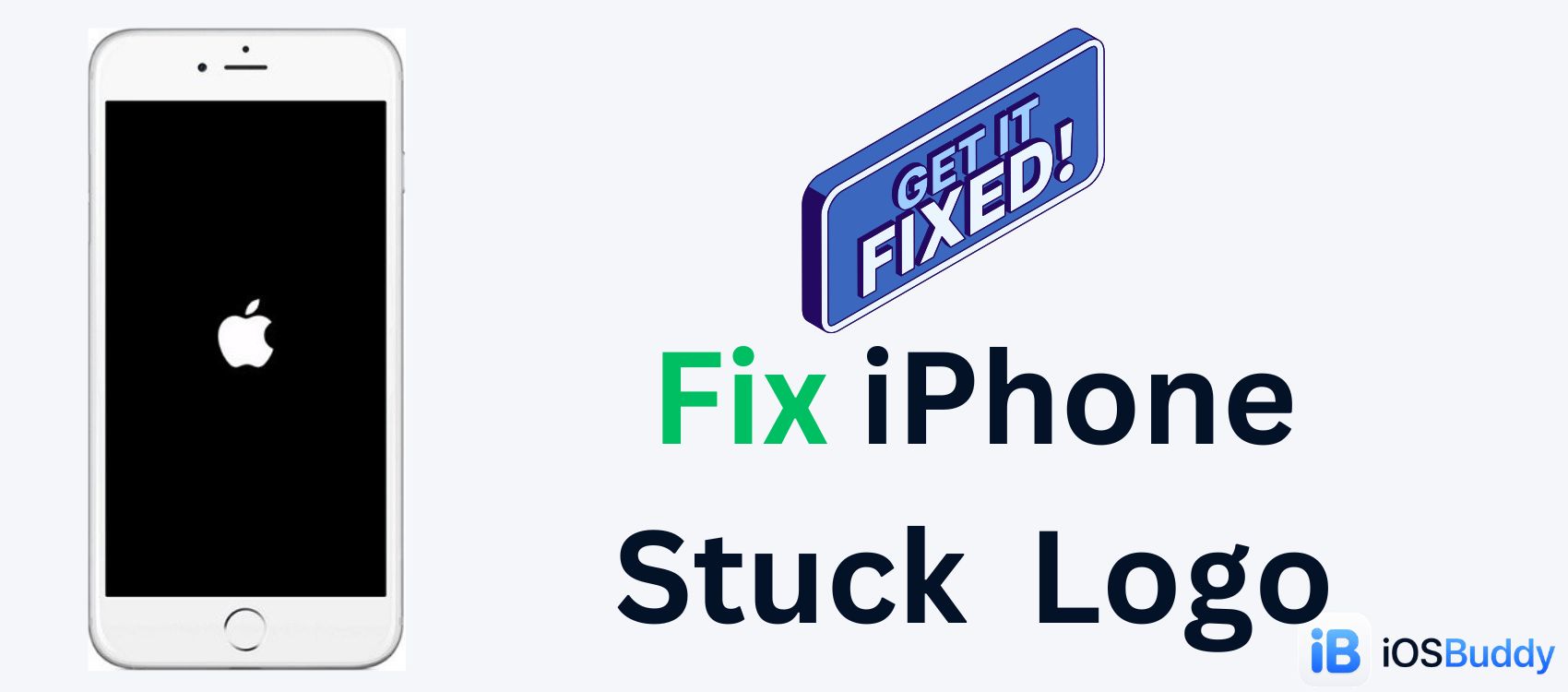
Your iPhone stuck on the Apple logo means the device has powered on but the iOS operating system cannot finish loading. The screen freezes at the white Apple logo — sometimes with a progress bar, sometimes without — and never reaches the lock screen.
This is one of the most common iPhone problems users face, and in the vast majority of cases it is a software issue, not a hardware failure.
The most common causes in 2026 include:
- Interrupted iOS update — Wi-Fi dropped mid-install, or the battery died during the iOS 26 rollout
- Corrupted system files — a software bug damaged core iOS components during startup
- Failed or incomplete backup restore — migrating from an old iPhone with iOS 13 or later can trigger a progress bar that stalls for over an hour
- Incompatible or unstable apps — a rogue app interfering with the startup process
- Jailbreak errors — a failed jailbreak or faulty tweak corrupting the bootloader
- Hardware damage — water damage, a drop, or a failing logic board (less common, but no software fix will resolve this)
Key insight: According to Apple Support (updated December 2025), if the progress bar on your screen has not moved for more than one hour, you should connect your device to a computer and enter Recovery Mode.
Fix 1: Force Restart Your iPhone (Always Try This First)
A force restart clears the device's current runtime state — stuck processes, frozen memory — without deleting your data. It takes under 30 seconds and works on every iPhone model.
iPhone 8, iPhone X, iPhone 11, 12, 13, 14, 15, 16 (and later)
- Press and quickly release the Volume Up button
- Press and quickly release the Volume Down button
- Press and hold the Side (Power) button — keep holding until the screen goes black and the Apple logo reappears (approximately 10 seconds)
- Release the Side button and let the phone boot normally
Pro Tip: If the screen stays black after holding the Side button for 15 seconds, your battery may be completely drained. Move to Fix 2 before trying again.
iPhone 7 and iPhone 7 Plus
- Press and hold both the Volume Down button and the Sleep/Wake button simultaneously
- Keep holding until the Apple logo appears, then release
iPhone 6s, iPhone SE (1st generation), and earlier
- Press and hold both the Home button and the Sleep/Wake (Top) button simultaneously
- Keep holding for approximately 10 seconds until the Apple logo appears, then release
Does it work? Force restart resolves most cases caused by minor software glitches. If your iPhone still freezes on the Apple logo after two attempts, move to the next fix.
Fix 2: Charge Your iPhone First — Don't Skip This
Before running any advanced recovery, plug your iPhone into power for at least 30 minutes using an official Apple cable and a wall charger (not a laptop USB port, which delivers less power).
A fully discharged battery can cause the iPhone to display the Apple logo and immediately shut down in a loop. This is often mistaken for a serious software error when the device simply does not have enough power to complete the boot sequence.
- Use the cable and charger that came with your iPhone, or a MFi-certified alternative
- Connect to a wall outlet, not a computer
- Wait a full 30 minutes before attempting a force restart again
Fix 3: Wait It Out — iPhone Stuck on Apple Logo With Loading Bar
If you see the Apple logo with a thin progress bar beneath it, your iPhone may simply be in the middle of a legitimate iOS restore or migration — and it needs more time.
This is especially common after:
- Restoring from an iCloud or iTunes/Finder backup
- Migrating data from a previous iPhone (iOS 13 and later)
- A large iOS update installing overnight
What to do:
- Plug your iPhone into power
- Leave it on a flat surface, undisturbed, for up to one full hour
- Watch the progress bar: if it is moving — even slowly — the process is working
- Only intervene if the bar has not moved at all for more than 60 minutes
If one hour passes with zero movement on the bar, proceed to Fix 4.
Fix 4: Recovery Mode — Reinstall iOS Without Losing Data
Recovery Mode is the most reliable software fix for an iPhone stuck on the Apple logo after a failed update. The Update option within Recovery Mode reinstalls iOS without erasing your data — always choose Update before Restore.
What you need:
- A Mac (macOS Catalina 10.15 or later: use Finder; macOS Mojave 10.14 or earlier: use iTunes)
- A Windows PC (use the latest version of the Apple Devices app or iTunes)
- A USB-C or Lightning cable (use the original Apple cable for best results)
How to Enter Recovery Mode (iPhone 8 and later, including iPhone 16)
- Connect your iPhone to your computer using a USB cable
- Open Finder (Mac) or iTunes / Apple Devices (Windows)
- Press and quickly release Volume Up
- Press and quickly release Volume Down
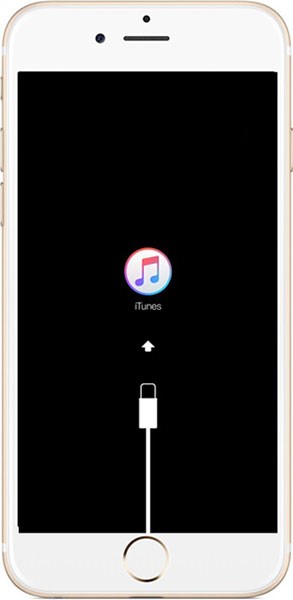
- Press and hold the Side button — keep holding until you see the Recovery Mode screen (a cable icon pointing to a laptop or the iTunes logo)
- Do not release when the Apple logo appears — keep holding until the Recovery Mode screen appears
How to Enter Recovery Mode (iPhone 7 / 7 Plus)
- Connect to your computer
- Press and hold both Volume Down and the Sleep/Wake button simultaneously
- Keep holding until the Recovery Mode screen appears
How to Enter Recovery Mode (iPhone 6s and earlier)
- Connect to your computer
- Press and hold both the Home button and the Sleep/Wake button
- Keep holding until the Recovery Mode screen appears
In Finder or iTunes, Choose Update — Not Restore
Once your computer detects the iPhone in Recovery Mode, a dialog box will appear:
- Update: reinstalls the latest version of iOS without erasing your data ✅ — choose this first
- Restore: wipes your iPhone completely and installs fresh iOS ⚠️ — only choose this if Update fails
iTunes or Finder will download the current iOS firmware (this may take several minutes depending on your connection speed) and reinstall it. The process typically takes 15–30 minutes.
Important: If iTunes shows "Error 4013," "Error 9," or another error code, make sure your USB cable is securely connected, try a different USB port, and ensure iTunes or Finder is updated to the latest version.
Fix 5: DFU Mode — The Deepest Reset Possible
DFU (Device Firmware Update) Mode bypasses the iPhone's bootloader entirely and reloads both the firmware and iOS from scratch. It is the deepest software fix available.
⚠️ Warning: DFU Mode always erases your iPhone. Only use this if Recovery Mode has failed and you have accepted potential data loss (or have a recent backup to restore from).
How to Enter DFU Mode (iPhone 8, 9, 10, 11, 12, 13, 14, 15, 16)
- Connect your iPhone to a computer and open iTunes or Finder
- Press and quickly release Volume Up
- Press and quickly release Volume Down
- Press and hold the Side button for exactly 10 seconds until the screen goes completely black
- While still holding the Side button, also press and hold Volume Down for 5 seconds
- Release only the Side button — keep holding Volume Down for another 10 seconds
Your screen should remain completely black. If you see the Apple logo or a "Connect to Computer" icon, you are not in DFU mode — start over.
- iTunes or Finder will display: "iTunes has detected an iPhone in recovery mode."
- Click Restore iPhone to begin the full firmware reinstall
How to know you're in DFU vs Recovery Mode: DFU Mode = completely black screen. Recovery Mode = cable/iTunes icon on screen. If you see anything on screen during DFU entry, you've entered Recovery Mode instead — still useful, but not DFU.
Fix 6: iPhone Stuck on Apple Logo After iOS Update
The iOS 26 update rollout in 2025–2026 affected a small percentage of users, particularly on iPhone 11, iPhone 12, and iPhone SE (2nd and 3rd generation). If your iPhone got stuck on the Apple logo during or just after an update:
- The most common cause is an interrupted download (Wi-Fi dropped mid-install) or a low-storage condition (less than 2 GB of free space available)
- Recovery Mode with the Update option is the recommended fix — it reinstalls iOS cleanly without erasing your data
- After recovery, ensure you have at least 2 GB of free storage before installing future updates
- Always update over a stable Wi-Fi connection with your phone plugged into power
iPhone 16 users have access to a newer feature called Wireless Restore (introduced with iOS 18), which allows you to restore an iPhone stuck in Recovery Mode using a nearby iPhone running iOS 18 connected to Wi-Fi — no computer required. This feature appears automatically when a device is stuck in a recovery loop after a failed update.
Fix 7: Contact Apple Support or Visit a Genius Bar
If you have tried every fix above and your iPhone is still stuck on the Apple logo, the problem is almost certainly hardware-related. Possible causes include:
- Failing battery (no software fix can address this)
- Water damage causing a short circuit
- Logic board failure
- Damaged NAND flash memory
No software tool — including DFU Mode — can fix hardware failure.
Your options:
- Chat or call Apple Support: visit support.apple.com to speak with a specialist
- Book a Genius Bar appointment: find your nearest Apple Store at apple.com/retail
- Apple Authorized Service Provider: if there is no Apple Store near you, an authorized provider can run the same diagnostics
Out-of-warranty hardware repair for an iPhone 14, 15, or 16 typically costs between $149 and $299, depending on the specific component that has failed.
How to Prevent iPhone Stuck on Apple Logo in the Future
Preventing this issue is straightforward once you know the common causes:
- Back up regularly — use iCloud Backup (Settings → [Your Name] → iCloud → iCloud Backup → Back Up Now) or Finder/iTunes before every major update
- Keep at least 2 GB of free storage before installing iOS updates — go to Settings → General → iPhone Storage to check
- Update on stable Wi-Fi — never start a major iOS update over cellular or a weak Wi-Fi signal
- Keep the phone plugged in during updates — a dead battery mid-update is one of the top causes of a stuck Apple logo
- Use official Apple cables — third-party or damaged cables can corrupt firmware transfers during restore
- Do not interrupt restore operations — if iTunes or Finder is restoring your iPhone, do not unplug the cable or close the app until it is fully complete
Frequently Asked Questions {#faq}
Can I fix an iPhone stuck on the Apple logo without a computer?
Yes, but only in limited cases. A force restart (Fix 1) requires no computer and fixes most minor software glitches in under 30 seconds. However, most Apple logo problems — especially after a failed update or corrupted system files — require a computer running iTunes or Finder to use Recovery Mode or DFU Mode.
Will fixing the Apple logo screen erase all my data?
It depends on the method. Force restart, charging, and waiting do not erase any data. Recovery Mode with the Update option reinstalls iOS without erasing data. Recovery Mode with Restore and DFU Mode will erase your iPhone — always try Update first and have a backup ready before using Restore or DFU.
How long does Recovery Mode take to fix an iPhone?
Recovery Mode typically takes 15–30 minutes, depending on your internet connection speed (iTunes or Finder must download the iOS firmware, which is approximately 6–8 GB). DFU Mode takes a similar amount of time. A force restart resolves most cases in under 30 seconds.
What is the difference between Recovery Mode and DFU Mode?
Recovery Mode reinstalls iOS through iTunes or Finder and shows a cable icon on the iPhone screen. It is the first computer-based fix to try. DFU Mode is a deeper restore that bypasses the bootloader entirely — the screen remains completely black during the process. Use DFU only when Recovery Mode fails.
My iPhone 16 is stuck on the Apple logo — is it different to fix?
The button sequence is identical to iPhone 8 through iPhone 15: Volume Up → Volume Down → hold Side button. iPhone 16 users on iOS 18 also have access to Wireless Restore, which can fix a device stuck in a recovery loop using a nearby iPhone — no computer required.
Why is my iPhone showing a flashing or blinking Apple logo?
A blinking or cycling Apple logo — where the logo appears, the phone restarts, and it appears again — usually indicates a boot loop caused by a severe software crash or, less commonly, a hardware issue. Try Recovery Mode first. If that fails, attempt DFU Mode. If DFU Mode fails, the problem is likely hardware.
Does third-party repair software (ReiBoot, TunesKit, etc.) work?
Third-party iOS repair tools can be effective for standard repair tasks, particularly when they offer a "Standard Repair" mode that claims to fix system files without data loss. However, Apple's native Recovery Mode (via iTunes or Finder) is free, requires no additional software, and is the recommended first-line fix for most users.
Conclusion
An iPhone stuck on the Apple logo is frustrating, but it is rarely permanent. In 2026, the vast majority of cases are caused by interrupted iOS 26 updates or corrupted system files — both of which are fully fixable with the right steps.
Start with the simplest solution: force restart (Fix 1). If that does not resolve it, work through charging (Fix 2), waiting (Fix 3), and Recovery Mode (Fix 4) in order. Reserve DFU Mode (Fix 5) for cases where Recovery Mode cannot get iOS reinstalled. Only escalate to Apple Support when you have exhausted every software option.
The one thing to always do before any major iOS update: back up your iPhone. A current backup means that even a full restore leaves you with all your data intact.
You Might Also Like

Jun 4, 2026
Apple Beta Software Program
The Apple Beta Software Program enables users to try early versions of iOS, iPadOS, macOS, watchOS, tvOS, HomePod software, and AirPods firmware before they are officially released, helping Apple identify bugs and improve performance and usability
Read more →
Jun 4, 2026
Apple Firmware Keys
Learn everything about Apple firmware keys — how iOS firmware encryption works, the role of GID keys, IMG2/IMG3/IMG4 file formats, and how researchers decrypt firmware for security analysis
Read more →
Jun 13, 2026
macOS 27 Golden Gate Beta 1: Every New Feature, Compatible Macs & Release Date
Apple announced macOS 27 Golden Gate at WWDC 2026 on June 8, 2026. Building directly upon the visual identity of macOS 26 Tahoe, this version marks a historic shift by dropping support for Intel CPUs entirely, running exclusively on Apple silicon. The first developer beta (build 26A5353q) is currently available for testing, with the stable consumer launch planned for September 2026
Read more →
Comments
No comments yet. Be the first to comment!
Leave a Comment
Sign in to comment
Join the conversation with your account or continue as a guest.